Reading
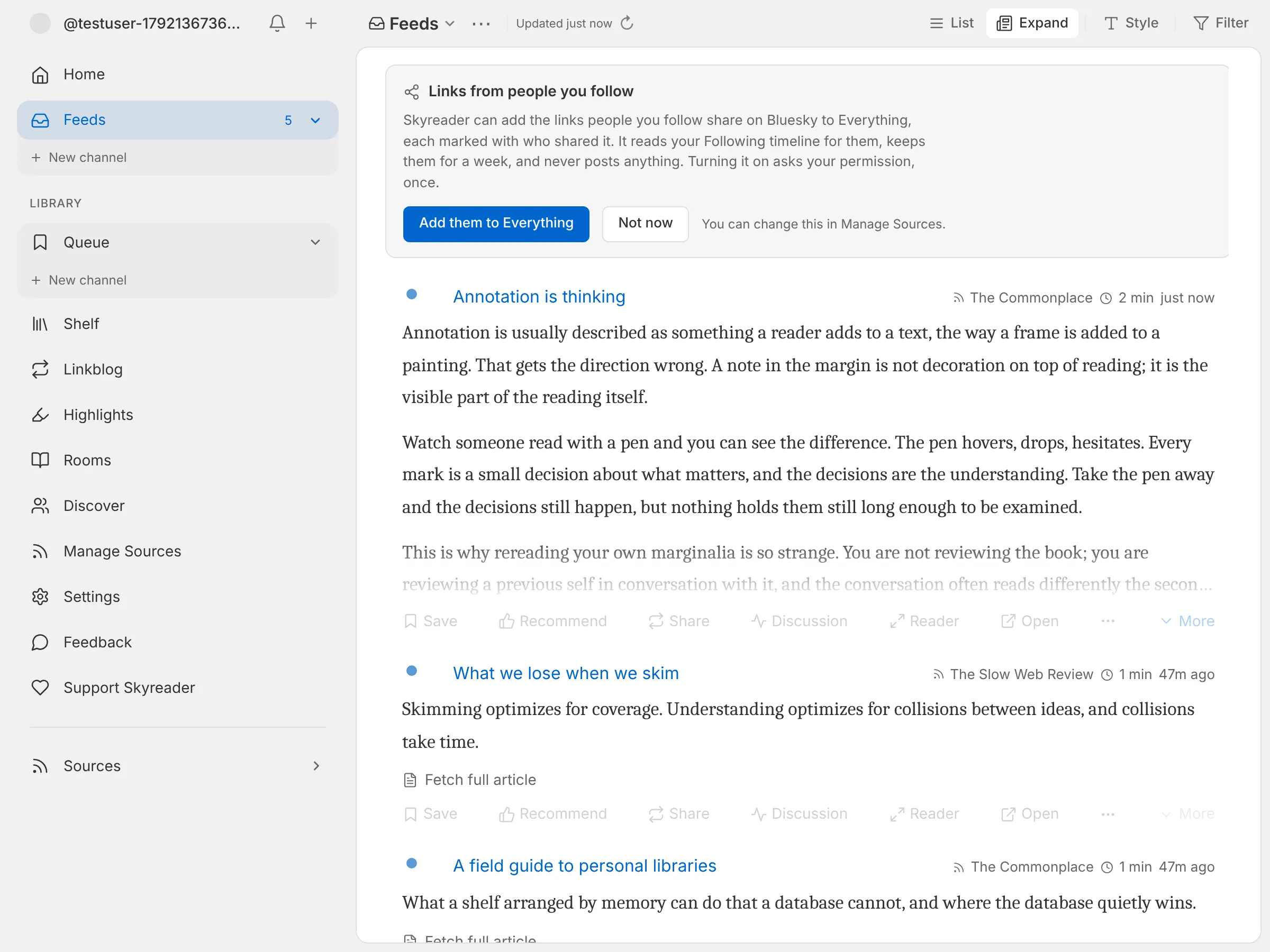
Skyreader gives you two ways into your reading. Home is a calm front page that picks up where you left off. Feeds is everything you follow, in one stream, with channels to slice it.
Home gathers what you’re in the middle of: pick up where you left off, recent saves, a few things from your Shelf, your daily magazine. It draws on your Library, and each lane links to where it comes from.
Continue reading shows anything you’ve started and not finished, leaving out what you’ve archived. The Shelf’s own Continue reading still includes a book you archived halfway through. New connections appears when someone on Semble connects something to one of your saves, as it does on the Shelf.
To change Home, choose Customize at the top of it. Pick where the app opens and how large the cards are, hide any section, or drag one by its handle to reorder. Changes apply right away and are saved on this device.
Feeds shows everything you follow in one chronological stream. The sidebar lists your sources, and your channels sit together under Channels. A channel is a saved view over what you read, your feeds, your saves or both, filtered by source or read state, so “Newsletters” or “Slow reads” is one click away.
Choosing what shows
Section titled “Choosing what shows”The Sources filter lists everything that brings you things to read, grouped:
- From Bluesky: Your likes and Your bookmarks (the links in posts you liked or bookmarked, if you’ve turned them on), and People you follow (the links they share).
- Newsletters: every sender, together or one by one.
- Publications: your feeds, by folder.
Everything starts checked. Uncheck a source, a folder or a whole group to leave it out. Choose only beside one to see just that. Show everything puts it all back. A group or folder stays whole as it grows: hide Newsletters and a newsletter that arrives tomorrow stays hidden too. On Feeds, the filter and the unread/all choice stay put when you come back or reload, on that device. Choose Save (on a phone, Save as channel) to keep a filter as a channel.
Items you scroll past can be marked read automatically (a toggle in Settings → Reading).
Making a channel
Section titled “Making a channel”Choose New channel under Channels, in the sidebar or the feed switcher on a phone.
- Name fills itself in from what you choose. Type your own to keep it.
- Show and Order set what the channel opens on: unread or everything, newest or oldest first.
- What’s in it:
- Sources I pick: a new channel starts with every source checked, your Library included; uncheck what it should leave out, or choose Select none and check the few you want. Check a folder to take in everything filed there, now and later. Under From your Library, Your saves takes in everything you’ve saved, and Your Shelf just what’s on your Shelf. A save shows by when you saved it, marked From your Library, and opens in place like anything else in the channel, in List or Expand. One you’ve archived counts as read.
- Sources that match: a rule picks them and keeps up as you follow more. Daily Digest takes sources that post several times a day, Don’t Miss the ones that post rarely, and Long Reads the ones that write at length. You can also match the sources you added lately, ones you tagged, or ones from a site.
- Labels: leave out posts with a label, such as Made with AI, or choose Only to keep just the labeled ones. See Labeled posts.
- Which saves: a channel of your saves alone, with nothing else checked, opens like your Queue, with Inbox and Archive. Narrow it by kind, when you saved it, length, site or tag, and order it by length or site too.
To change a channel later, open it and choose Edit channel, or right-click it in the sidebar. On a phone, Edit channel sits beside View in the view options.
Labeled posts
Section titled “Labeled posts”Some writers label their own posts so you know what you’re getting. A post on pckt marked Made with AI is the common case, and a post can also be labeled as adult content, nudity or graphic media. The label shows as a small tag beside the post’s date. Labels come from blogs on the Atmosphere (standard.site publications such as pckt and Leaflet). RSS feeds don’t carry them, and the writer decides whether to add one, so an unlabeled post isn’t a promise.
In Settings → Reading → Content labels, choose what each label does:
- Show: the post appears as usual, with its tag.
- Warn: the post appears, but opens to a note naming the label. Choose Show post to read it. Adult content, nudity and graphic media start here.
- Hide: the post stays out of your feeds and channels, and out of your unread counts. Made with AI starts on Show, so pick Hide if you’d rather not see it.
A saved search doesn’t apply labels: it shows everything that matches. These settings belong to your account, so they follow you to your other devices, and so does a channel’s Labels filter. A channel set to Only a label you hide in Settings still shows those posts, since that channel asked for them.
Arranging channels
Section titled “Arranging channels”To change the order of your channels, drag one up or down the sidebar. Or right-click it (on a phone, press and hold) and choose Move up or Move down. The order follows you to your other devices.
The reader
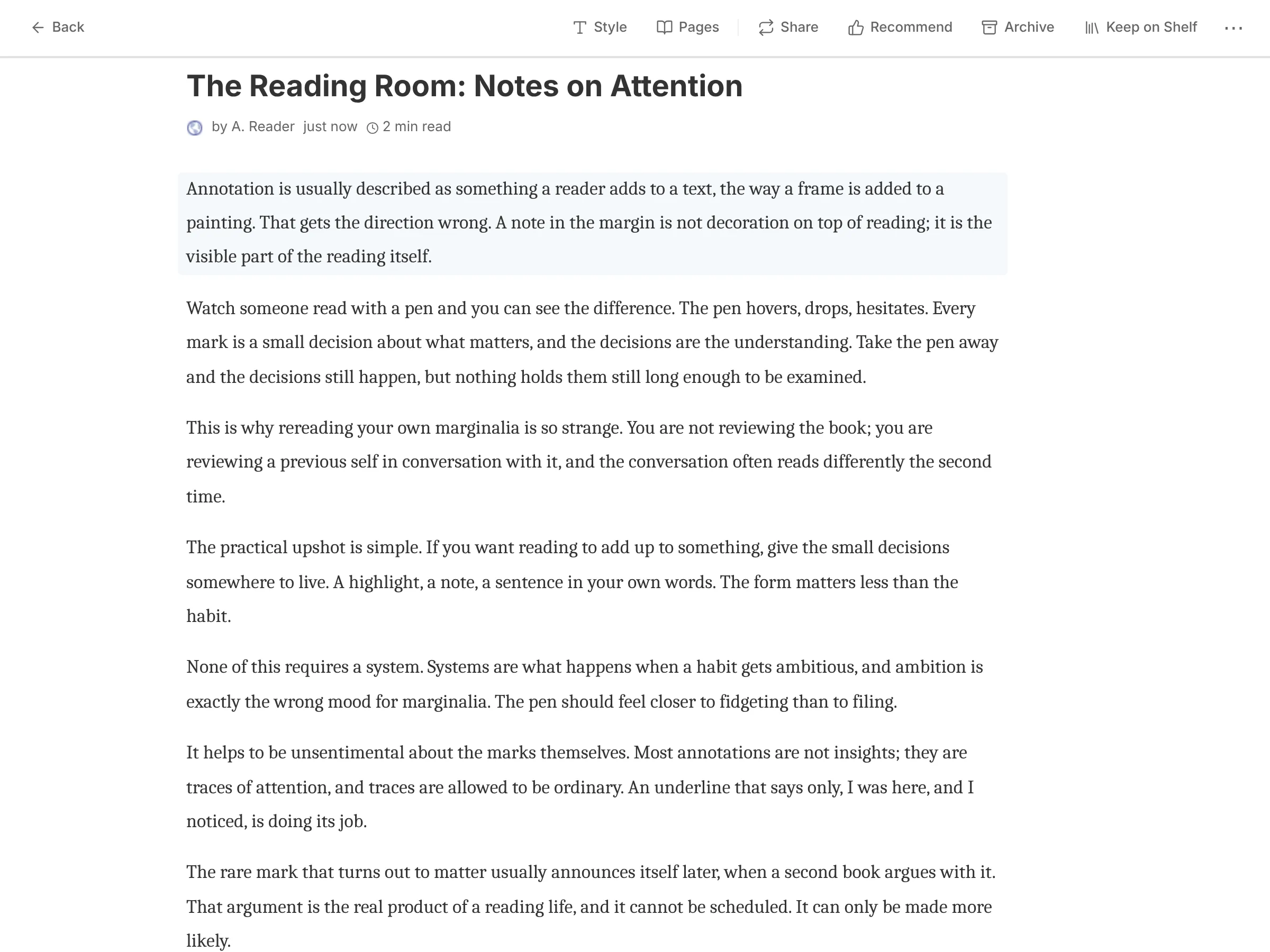
Section titled “The reader”Opening an article gives you a clean, full-screen reading surface.
Skyreader preserves the structure of Leaflet and Offprint publications, including galleries, equations, buttons, task lists, and aligned text. If a publication uses an interactive widget the reader cannot safely show, the article says so and links you to the original instead of silently leaving content out. Members-only sections stay on their publication.
- Font and size: change the reading font and the text size from the reader’s appearance controls.
- Paged mode: a toggle in the reader switches from scrolling to page turns, one page at a time, or two columns side by side on a wide screen. On a phone, swipe left for the next page and right to go back. If you’d rather swipe up and down, open Style & Actions (the sliders button at the right end of the bar at the bottom) and, under Swipe to turn, choose Up & down: swipe up for the next page, down to go back.
- Contents: an article with sections, a PDF or a book lists them under Contents: beside Back on a wide screen, in the bar at the bottom on a phone, or press c. The section you’re in is marked; choose another to go there. A PDF or a book lists its own table of contents where it has one, in either view of a PDF.
- Light and dark: Skyreader follows your device’s setting. To keep it light or dark regardless, pick a theme in Settings → Reading → Appearance.
- Highlighting: double-click a paragraph or select text. See Saving and highlights.
- Images: click an image to see it full screen. Click again or press Esc to close it.
Discussion
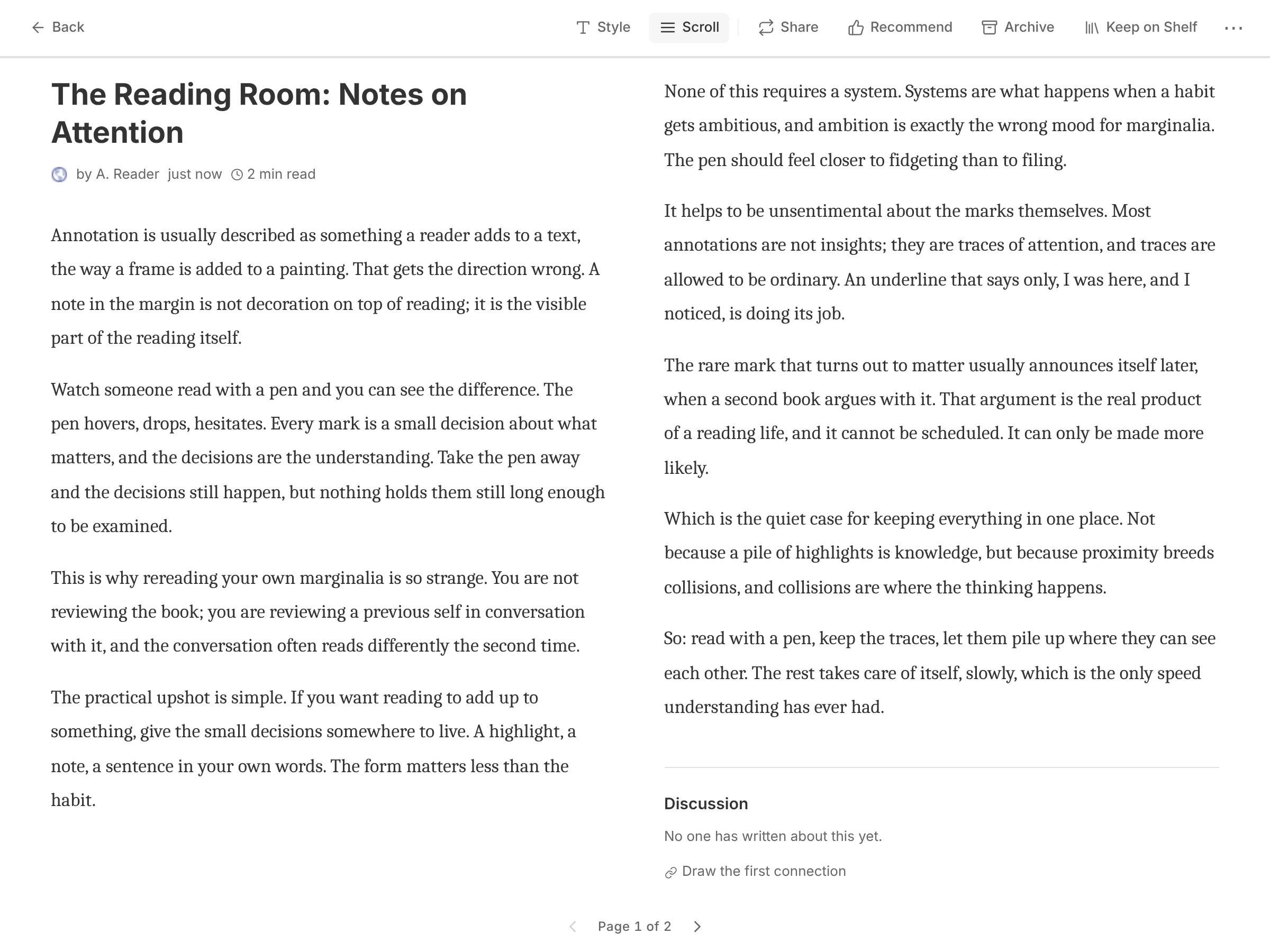
Section titled “Discussion”Articles carry a Discussion section at the end that gathers what people across the Atmosphere have written about that link: linkblog notes, Leaflet comments, Bluesky posts, Margin annotations, Semble connections, merged into one stream.
To add yours, use the buttons under Add yours. Bluesky writes a post from your own account, with the article’s link card under your words; it’s public like any Bluesky post.
To connect an article to another one on Semble, choose Connect this to something (or Draw the first connection), then pick how they relate. The other end can be any link: paste one, or search your library.
You don’t have to go looking for the article you just finished. At the end of an article, above the Discussion, Connect this to something you’ve read shows your last few reads as cards. Tap one to connect the two, then pick how they relate. The same cards sit under the search field when you open the connect window. They show what you read on this device, plus saves you’ve read on any device.
To connect the article to a page it links to, tap the link and choose Connect on Semble…. Connections are public on Semble.
The daily magazine
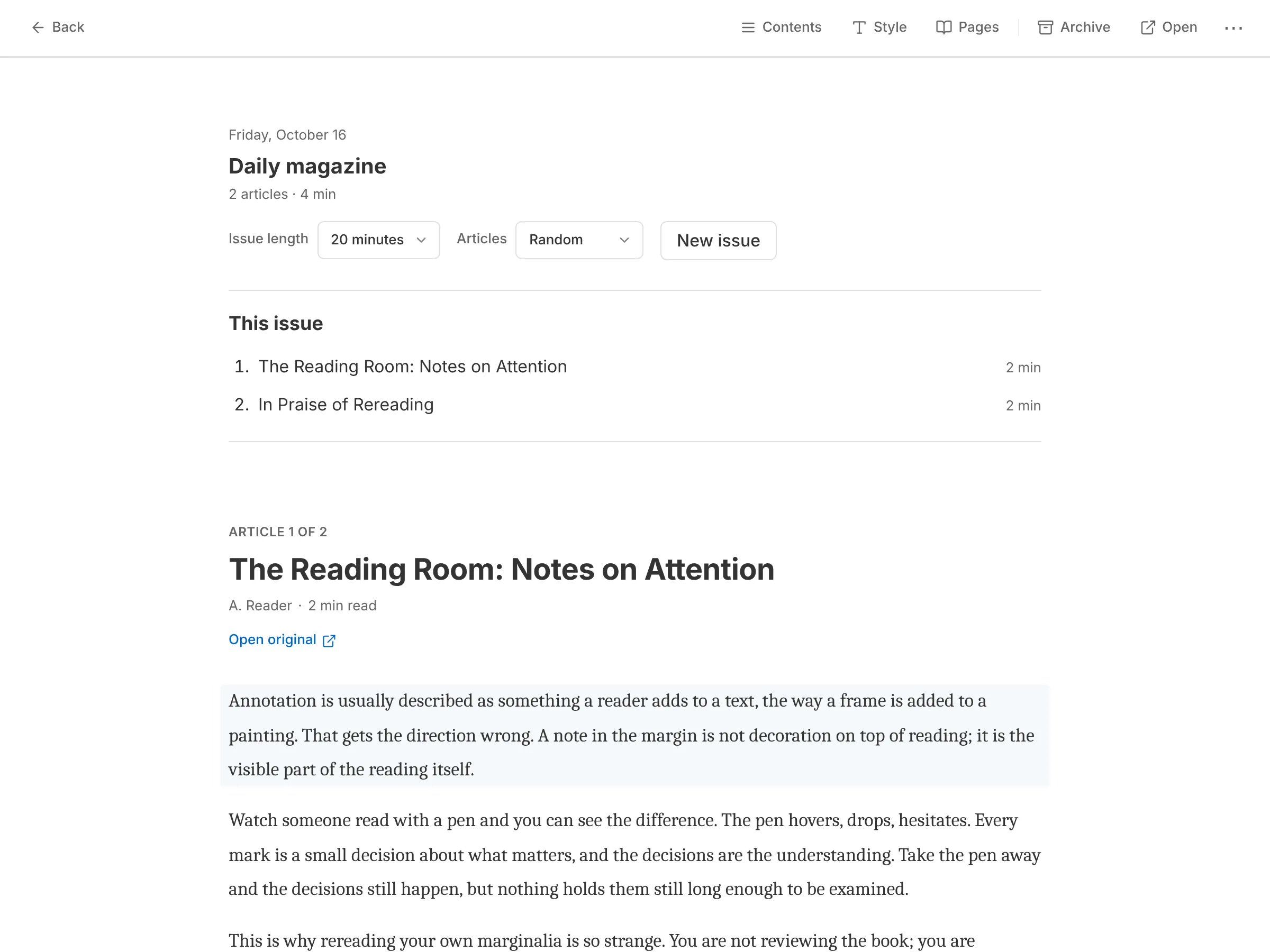
Section titled “The daily magazine”Daily builds a magazine issue from your saved articles. Pick an issue length in minutes and an ordering, then Generate issue. An issue is a snapshot: new saves don’t reshuffle it, and it resumes where you left off on any device. When you finish, archive the issue or generate a new one from the current pile.
Offline
Section titled “Offline”Your feeds, saves, and highlights are stored on your device. Reading, marking read, highlighting, and the magazine all work offline; anything you do is queued and synced when you reconnect. Adding sources and changing sync settings need a connection.